USB-C Docking Station for a Laptop: Check the Full Setup
 12 min read
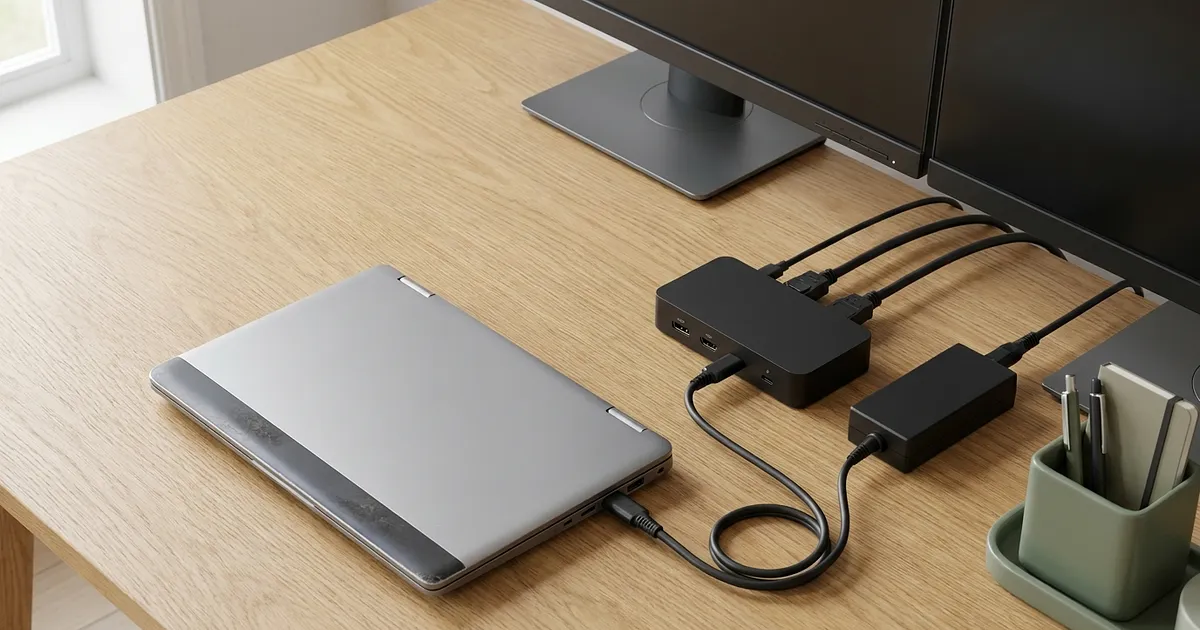
Two monitor outputs and “90 W” on a dock sound conclusive. On the Lenovo 40AS, however, those figures mean 90 W input and no more than 60 W of laptop charging. That distinction can decide whether a USB-C docking station charges your particular laptop and extends two displays. The socket shape alone can't answer either question.
This guide starts later in the buying process than our refurbished laptop buying guide. The laptop choice is largely settled. Now the task is to check one dock against one desk setup. Refurbito doesn't sell or bench-test these devices. This check uses the linked manufacturer documents for each model.
The three-document check before you buy
“Has USB-C” isn't a compatibility statement. USB-C first describes a connector shape. Data, charging, native DisplayPort video, USB4, and Thunderbolt are separate capabilities that depend on the host, cable, and connected device. StarTech explains that end-to-end dependency on its USB-C capability page (accessed October 18, 2026). A port photo isn't enough to clear a purchase.
Collect the laptop model number, the dock part number, and the display setup you want. Put them in the table. If host power or the display path is blank, the combination hasn't been confirmed.
| Check | Laptop document | Dock document | Monitor and OS details | Decision |
|---|---|---|---|---|
| Identity | model, type, or chip generation | part number and variant | monitor models and OS version | every device identified |
| Charging | supported USB-C input and original adapter rating | maximum power to the host, correct power supply | host-cable power marking | requirement accounted for |
| Display path | DP Alt Mode, Thunderbolt, or USB4 | native path, MST, Thunderbolt, or DisplayLink | extend or mirror | same path supported |
| Picture quality | native display limit | combined resolution and refresh limits with conditions | required resolution and refresh rate | target within the stated limit |
| Package | required port | power brick, mains lead, host cable | suitable display cables | nothing essential missing |
A “document” might be a manual or support page rather than a PDF. For a used dock, find the page for its part number, not merely the product family. The monitor maker should state the input, native resolution, and refresh rate. A reseller listing is a useful lead, but it doesn't replace those specifications.
Document 1: the laptop model
Refurbished business-laptop listings often stop at a family name such as ThinkPad T480, Latitude, or EliteBook. One family may include several configurations. Look for the machine type, full model code, service tag, or, with Apple, the chip and model year. Similar-looking machines can have different ports, graphics hardware, or charging requirements.
Next, identify the port you will use. Some laptops have several USB-C sockets, but only one carries the full docking function. A symbol beside the port is a useful clue; the model manual is the better answer. Dell's docking-station guide (accessed October 18, 2026) also begins by identifying the laptop port and dock type.
You need four answers from the laptop documentation:
- Does the intended port carry native video through DisplayPort Alt Mode, Thunderbolt, or USB4?
- Can the notebook accept charging through that port?
- What rating does the model page give its original adapter?
- How many native external displays does its graphics architecture support on your operating system?
If the listing omits the full type number, ask for a photo of the product label or the model name shown in BIOS or UEFI. A port photo on its own? Not enough. Pausing here isn't pedantry. It's cheaper than returning a dock later.
Still choosing the laptop family? The refurbished MacBook versus ThinkPad guide covers that earlier decision. For a broader Mac purchase, read the refurbished MacBook buying guide first. Dock compatibility starts with a known model.
Document 2: dock, power supply, and host cable
The sockets on the back are only part of the product. You also need the host interface, maximum host charging output, display topology, operating-system support, and box contents. Used docks are often sold bare. Add the correct power brick and host cable, and the bargain can disappear.
The biggest wattage may answer the wrong question. A “90 W dock” might describe its power supply or input. The laptop cares about Power Delivery to the host. Because the dock also consumes power and may feed USB devices, input and laptop output are separate figures.
For the ThinkPad USB-C Dock Gen 2, part number 40AS, last modified July 28, 2026, Lenovo lists 90 W input but no more than 60 W of laptop charging. The same page includes a 1 m host cable. Those details belong to the 40AS, not every dock in a similar shell.
A lower host output doesn't automatically mean failure. Depending on the laptop, it may charge more slowly, lose battery under load, show a warning, or refuse to charge. Without guidance for the specific machine, the verdict stays “not established.”
Document 3: monitors, desktop mode, and OS
“Two monitors” is too vague. Write the target setup in one line: “2 external displays, extended; monitor A at 2560 × 1440 and 60 Hz; monitor B at 1920 × 1080 and 60 Hz; laptop display stays open.” That's a sample requirement, not a promise that a particular dock will deliver it.
Record the inputs and cables as well:
| Mode | Monitor A | Monitor B | Laptop display | Connection |
|---|---|---|---|---|
| extended | native resolution and intended refresh rate | native resolution and intended refresh rate | open or closed | HDMI, DisplayPort, or USB-C for each display |
Your monitor specifications supply the real values. The dock must support the combination, not each socket separately in an ideal single-monitor setup.
Charging: read host watts, not the power-brick label
USB Power Delivery negotiates power across the source, sink, and cable. A package number is a ceiling under stated conditions. USB-IF puts the USB PD 3.1 ceiling at 240 W with compatible full-featured components (accessed October 18, 2026). That's a protocol limit, not a promise from an arbitrary dock.
Keep four facts separate:
the laptop's original adapter rating on its model page
the dock's maximum host output
the model and rating of the dock power brick
the host cable's power capability
For the ThinkPad T480 configuration 20L6001NGE, Lenovo lists a 65 W USB-C adapter on the model page (accessed October 18, 2026). Lenovo caps the 40AS at 60 W to the laptop. That 5 W gap doesn't prove failure. It only shows why the prominent 90 W input figure can't settle the charging question.
The host cable belongs in the check
An unknown USB-C cable may carry power but fail at the required video or data rate. The reverse applies too. A fast cable can't add DisplayPort Alt Mode to a laptop port that lacks it.
Under the USB-IF cable rules (accessed October 18, 2026), certified USB-C-to-USB-C cable categories in its compliance program carry a 60 W or 240 W power marking. Categories other than USB 2.0 also receive a data-rate marking. This describes the certification program and doesn't prove that every unmarked cable is unusable.
A used-dock seller should show or identify the host cable. If it's missing, add replacement cost and specification risk to the price. A captive cable is difficult to lose, but one cable fault can turn into a dock repair. Small detail. Big nuisance later.
Two monitors: follow the signal path
Two HDMI or DisplayPort sockets are only outputs. Independent pictures require the laptop, dock path, and operating system to permit several streams. VESA's Multi-Stream Transport explanation identifies both the GPU's simultaneous-display limit and the shared link's pixel bandwidth as constraints (accessed October 18, 2026).
| Display path | Where does the picture originate? | Driver question | What to verify |
|---|---|---|---|
| USB-C with DP Alt Mode and MST | native GPU output | usually platform drivers | GPU count, link bandwidth, MST, and OS |
| Thunderbolt or USB4 | native GPU output | host support and firmware | generation, topology, and native display count |
| DisplayLink over USB | software sends rendered pixels over USB | separate driver | OS permissions, driver support, and protected playback |
The paths aren't interchangeable. An MST dock may provide two extended desktops on a Windows business laptop and mirror the same output arrangement on macOS. StarTech documents mirroring rather than independent extended displays through DisplayPort MST on macOS (accessed October 18, 2026). Thunderbolt and DisplayLink use different routes.
M1 and M3: “MacBook” isn't specific enough
For the 2020 MacBook Air with M1, Apple lists one external display up to 6K at 60 Hz (specifications accessed October 18, 2026), despite the laptop having two Thunderbolt and USB4 ports. A second dock output isn't a second native display engine.
The M3 answer has conditions. On a support page published July 30, 2024, Apple says named MacBook Air and MacBook Pro models with M3 can use two external displays with the lid closed and under its listed macOS, power, and accessory requirements. Open the lid and the second external display goes dark or disconnects, according to the same page. Refurbito's M1 through M4 comparison covers the broader generation choice; only this display condition matters here.
“Works with Mac” says very little. Even “works with Apple silicon” leaves the model, chip, lid state, and OS version unanswered.
DisplayLink is a separate route
DisplayLink doesn't add another native DisplayPort path. Software accesses rendered pixels and sends them over USB. It can help when native display support falls short of the target setup. A driver path comes with it.
On macOS, DisplayLink needs Screen Recording permission. Synaptics explains (accessed October 18, 2026) that the software uses this access to capture and transmit pixels, while DisplayLink Manager doesn't send data or pixels back to DisplayLink or Synaptics. A managed work laptop may still need IT approval.
One more limit matters before purchase. Synaptics documents (accessed October 18, 2026) that protected video in some applications may remain black while audio continues when DisplayLink screens are connected. For media or training work, that can outweigh an extra output.
Buying a used dock and troubleshooting the setup
A cheap dock without accessories isn't necessarily a cheap setup. On its 40AS page, last modified July 28, 2026, Lenovo lists the dock, a 90 W adapter, mains lead, and 1 m host cable. If one part is absent, you're comparing a partial package with a complete listing.
Before buying, the listing should identify:
dock part number, including its module variant
power-supply model and rating
mains lead and suitable host cable
socket condition and a statement about function or firmware
a usable return policy
Once connected, troubleshoot in a fixed order. First check the models, selected laptop port, power supply, host cable, and monitor input. Then try another full-function USB-C or Thunderbolt port identified in the manual, along with correctly rated cables. Operating-system updates, graphics or Thunderbolt drivers, laptop firmware, and dock firmware come later. Dell's guide linked earlier gives the order Thunderbolt driver, laptop BIOS, then dock firmware for the systems it covers.
Firmware may fix detection and stability. It can't create a missing DP Alt Mode, another native display engine, or higher host power.
Three possible verdicts
| Verdict | Meaning | Next move |
|---|---|---|
| fits | laptop, dock, cable, monitors, and OS cover the target setup | compare package completeness and seller terms |
| fits with a limitation | one specific deviation is known, such as a closed lid or lower host power | record the limitation and accept it knowingly |
| not established | model number, host power, display path, or OS behaviour is missing | request the missing detail |
If the model number, host power, or display path is missing, the verdict stays “not established.” Ask for that detail. If the seller can't provide it, leave the dock behind.
Frequently Asked Questions
Does every USB-C docking station work with every laptop?
No. USB-C first identifies the connector. Video, charging, and multiple displays require the laptop port, dock, host cable, and operating system to support the same functions. Without the full laptop model, the intended connection can't be confirmed before purchase.
How can I tell whether a laptop supports DisplayPort Alt Mode?
A DisplayPort or Thunderbolt symbol is a clue, not a complete answer. Check the laptop manual or specification for the particular port you plan to use. A photo of the USB-C socket doesn't establish video support.
Why does my laptop charge slowly through the dock?
The dock power supply's rating is often confused with power delivered to the laptop. Compare maximum host output with the laptop model's charging requirement, then check the host cable and power supply. The result of lower power depends on the particular machine.
Why do two monitors mirror instead of extending the desktop?
The display path may not suit the operating system or the laptop's native display support. Two dock sockets don't guarantee independent pictures. Identify whether the setup uses MST, Thunderbolt, or DisplayLink, then check whether the laptop and OS support extended displays through that route.
Is DisplayLink a good way to run two monitors on a Mac?
DisplayLink can provide another USB graphics path in some setups, but it isn't a native display output. It needs a driver and Screen Recording permission on macOS. Managed-device policies or protected-video limits may make that route unsuitable.
What should come with a used dock?
The listing should identify the dock variant, a correctly rated power supply, mains lead, and suitable host cable. Check socket condition, return terms, and support for current drivers or firmware too. A bare dock is rarely a complete one-cable setup.
Sources
- Lenovo 40AS support.lenovo.com
- StarTech explains that end-to-end dependency on its USB-C capability page (accessed October 18, 2026) startech.com
- Dell's docking-station guide (accessed October 18, 2026) dell.com
- USB-IF puts the USB PD 3.1 ceiling at 240 W with compatible full-featured components (accessed October 18, 2026) usb.org
- Lenovo lists a 65 W USB-C adapter on the model page (accessed October 18, 2026) psref.lenovo.com
- USB-IF cable rules (accessed October 18, 2026) usb.org
- VESA's Multi-Stream Transport explanation identifies both the GPU's simultaneous-display limit and the shared link's pixel bandwidth as constraints (accessed October 18, 2026) displayport.org
- StarTech documents mirroring rather than independent extended displays through DisplayPort MST on macOS (accessed October 18, 2026) startech.com
- 2020 MacBook Air with M1, Apple lists one external display up to 6K at 60 Hz (specifications accessed October 18, 2026) support.apple.com
- support page published July 30, 2024 support.apple.com
- Synaptics explains (accessed October 18, 2026) support.displaylink.com
- Synaptics documents (accessed October 18, 2026) support.displaylink.com